Setting Up Room Blocks for a Group
Room Blocks hold a set number of rooms categorized by room type in the room inventory. It ensures that rooms are blocked for the expected number of guests in a group.
Click the Room Blocks tab. Many of the fields will already contain information that was entered on the Group Booking tab. For example, the Status, Arrival, and Departure fields. Other updates can be made if needed.
Add the Arrival Shoulder Dates and the Departure Shoulder Dates for a maximum of 365 days, either before or after the specified arrival or departure date.
Select a date range from the Booking Allowed field to indicate when guests can begin making reservations as part of the group booking.
Select how to release rooms for the group from Release:
-
Auto release: Select this option to automatically release the remaining rooms in the block that have not been picked up by the cut-off date.
-
Manual release: Select this option to require an agent to release rooms manually.
-
Rolling release: Select this option to begin the release of rooms based on the number of rooms is released based on the number of days out. For example, if the rooms are set to release in 21 days, on day 21, the rooms that are not assigned will be released day-by-day until all rooms are released.
Enter a Wash percentage, if needed. It is the percentage of rooms that are not expected to be picked by the group.
Enter the expected number of adults and children in the Adults and Children fields, respectively. By default, the number of adults is 1.
Add the associated extra charge for adults and children in the Extra Charge fields.
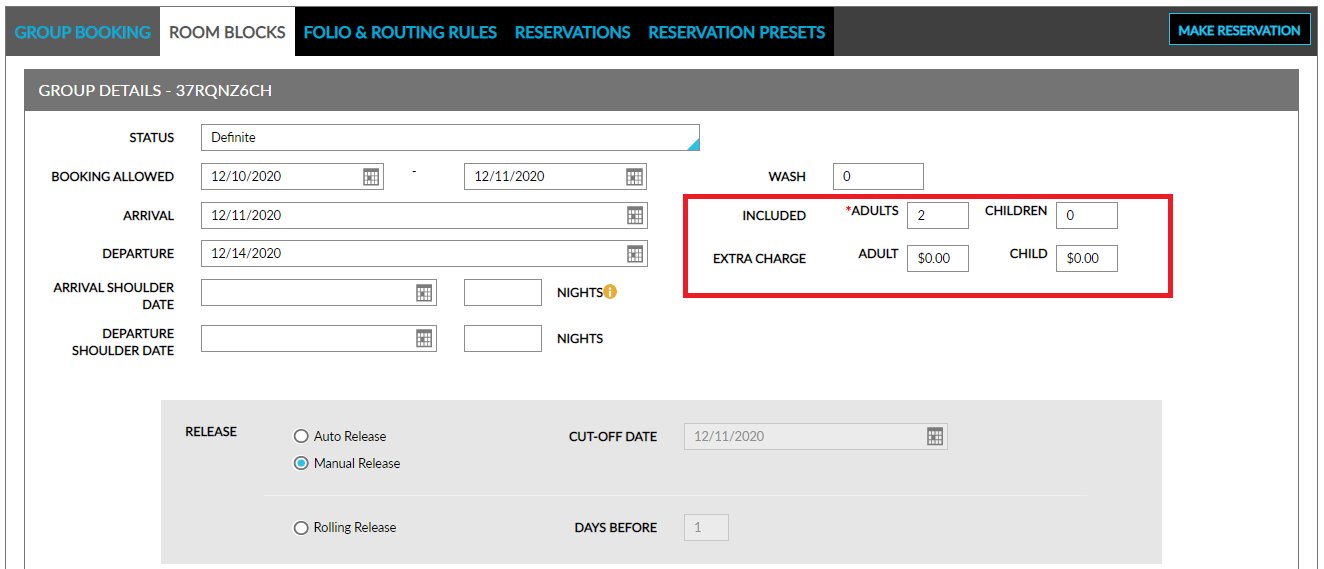
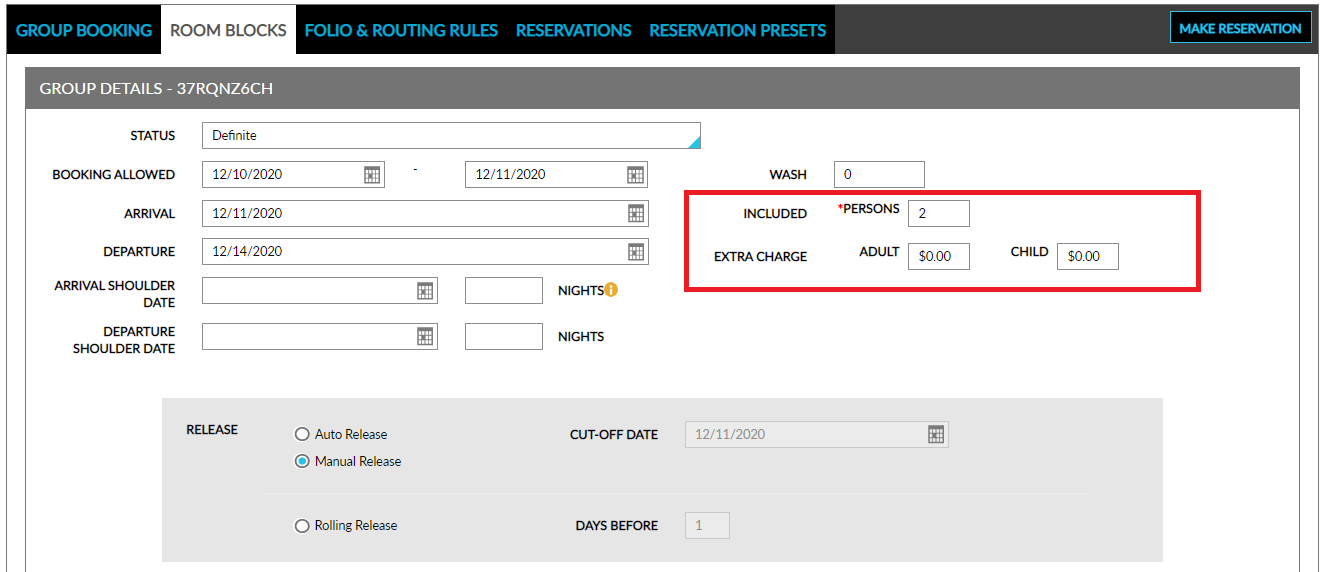
Instead of adults and children, the group can be counted by the number of persons by enabling Price by Persons in Feature Settings. The extra charges for adults and children will still be available.
Click the Setup tab.
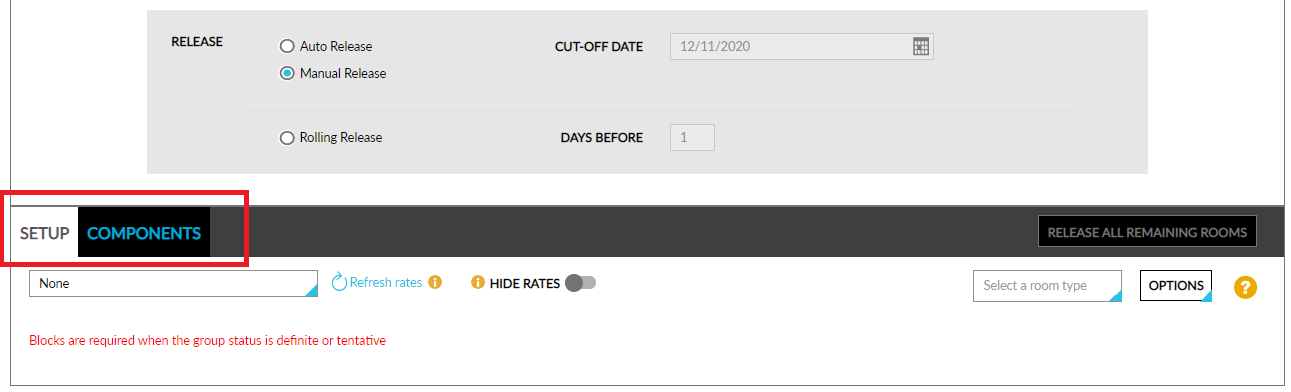
Select a Room Type for the room block from the drop-down menu on the screen's right side.
Select a Rate Plan/Package using the drop-down menu on the screen's left side. Once selected, a prompt asks whether the rate plan should be applied to the appropriate room type. Users can choose from existing rate plans to populate rates for the group blocks.
Click Apply to apply the rate plan or package.
Click Refresh Rates to update the price for the rate plan in the future if there is a change to the pricing. Refreshing the rates will override the rates on the blocks based on the selected rate plan.
Enable Hide Rates toggle to hide the rates from the view. It will leave only the room blocks visible.
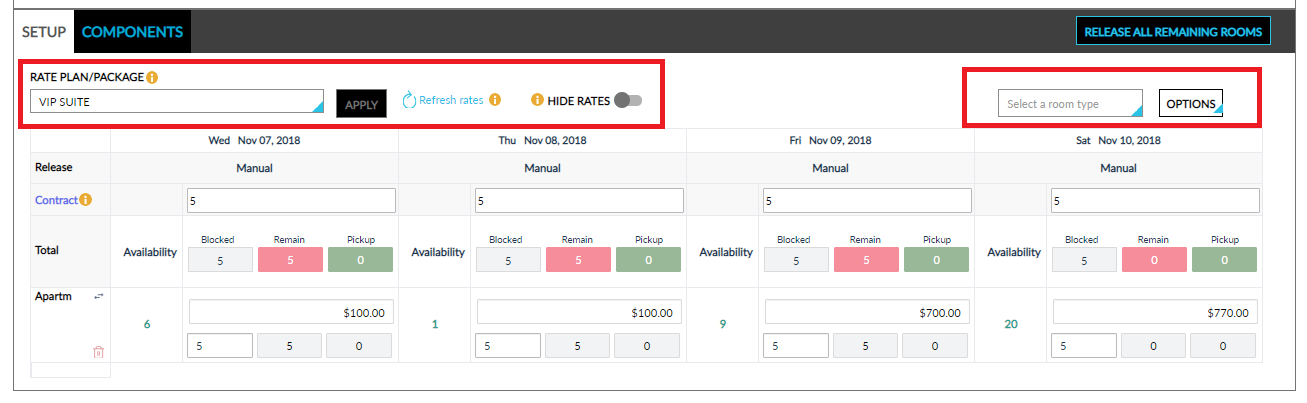
Enter the number of rooms required for the group for each date in the Contract field.
The group shoulder dates are highlighted in grey in the Setup tab. Users will not be able to modify the number of rooms for the group's shoulder dates. Users can only add or change the rates for the room block in the group shoulder dates.
Check the current room availability under Availability for each room type and booking date.
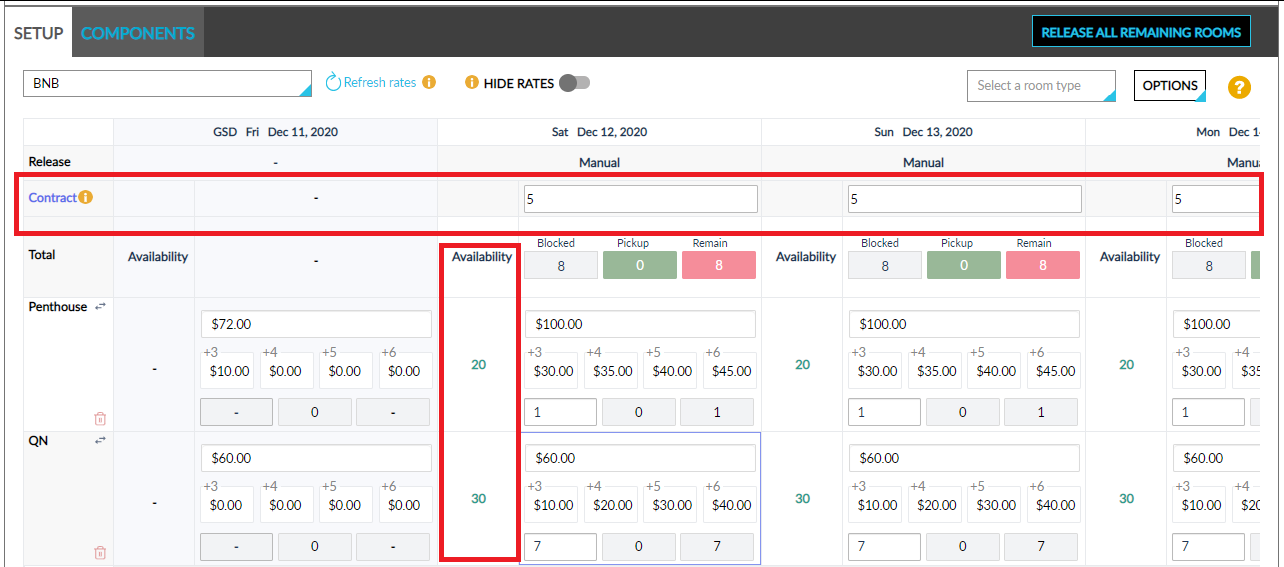
Enter the number of rooms to be blocked for each room type.
Check the Blocked, Pickup, and Remain fields to find the number of blocked rooms, the number of rooms to be picked up, and the remaining rooms, respectively. The fields are auto-calculated based on the current status.
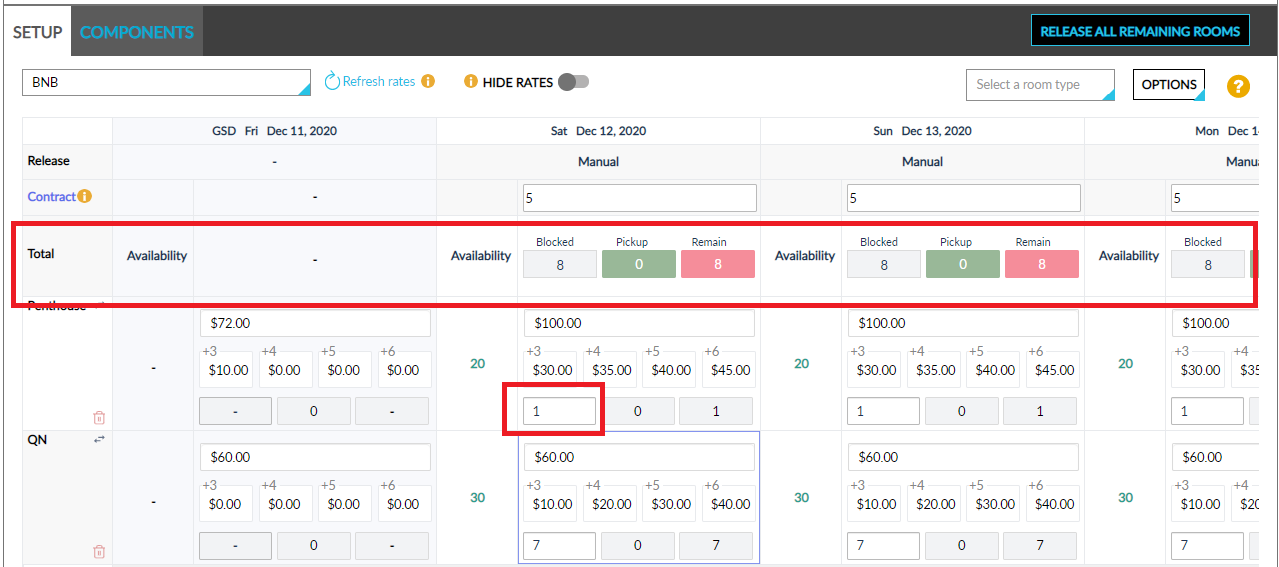
Modify the rates manually for each room type, if required.
Customize up to four additional guest charges. The feature is behind a toggle named Price by Adult.
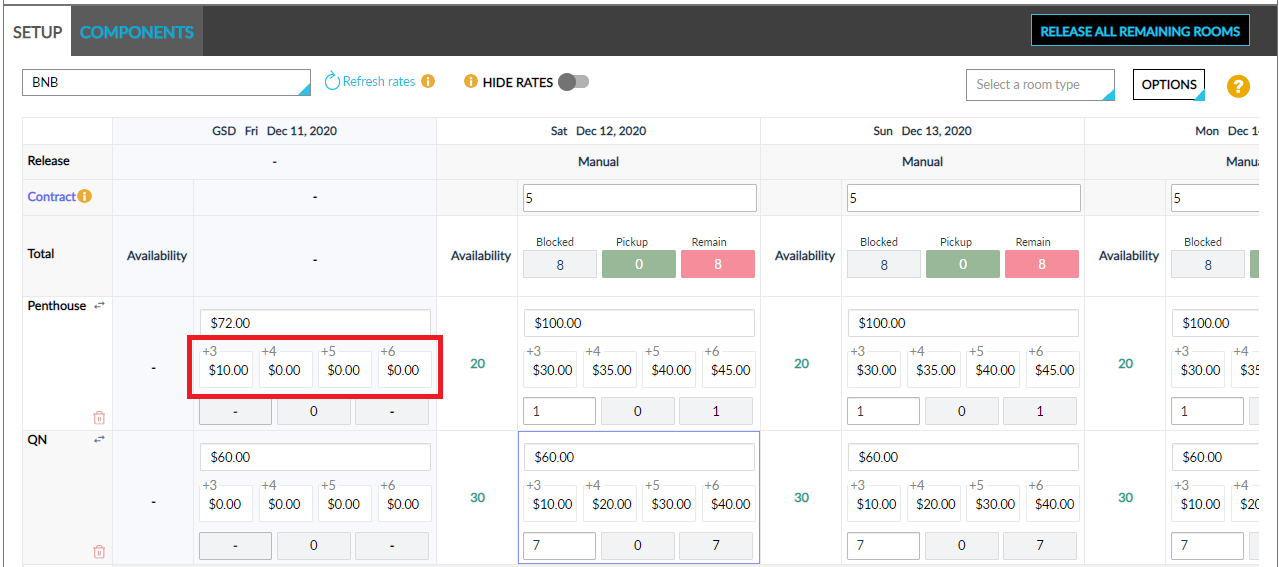
The extra charge for adults and children can also be set up, and those rates will be considered beyond the four customized additional guest charges.
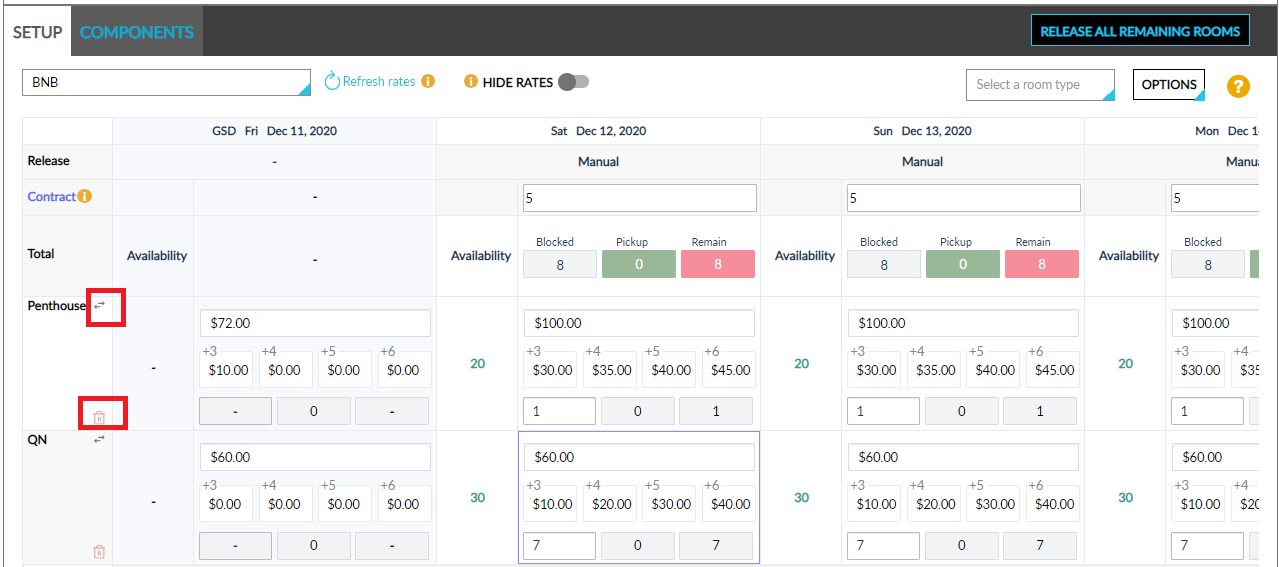
Click the delete icon for each room type to delete the room type. Click Yes or No in the delete confirmation popup to proceed further.
Click the swap icon next to the room type name to swap a particular room type with another by selecting a new room type from the drop-down list that appears.
Swapping a room type will switch one room type for another. Rates and number of rooms will remain as already set, and the user will have to make changes as per requirement.
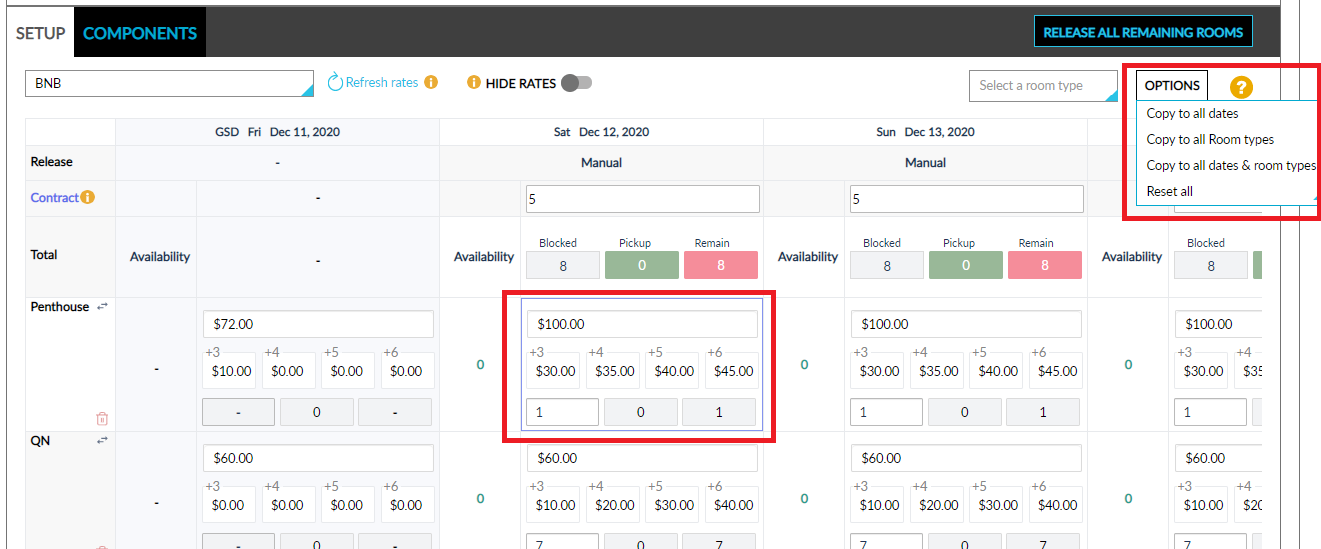
Click the Options drop-down list on the top right corner to copy the filled information in one field to all dates, room types, or both, and to reset all. A specific field should be selected to perform this action.
-
Copy to all dates: Copy the filled-in rate or room count to all the dates of a particular room type. The action is performed in a horizontal direction.
-
Copy to all room types: Copy the filled-in rate or room count for a particular date to all the room types. The action is performed in a vertical direction.
-
Copy to all dates & room types: Copy the filled-in rate or room count across the booking entirety.
-
Reset all: Reset all the filled-in rates and room counts to zero.
Copying and resetting rates and room count are applicable only for current and future dates.
Click Save Changes.
To release the remaining rooms in the block and make them available to transient guests, click Release All Remaining Rooms.